How to Sign a PDF Online for Free (No Account, No Software)

by Jordan Kim · Document workflows & browser based editing · Updated 7/9/2026 · Posted in PDF Editing
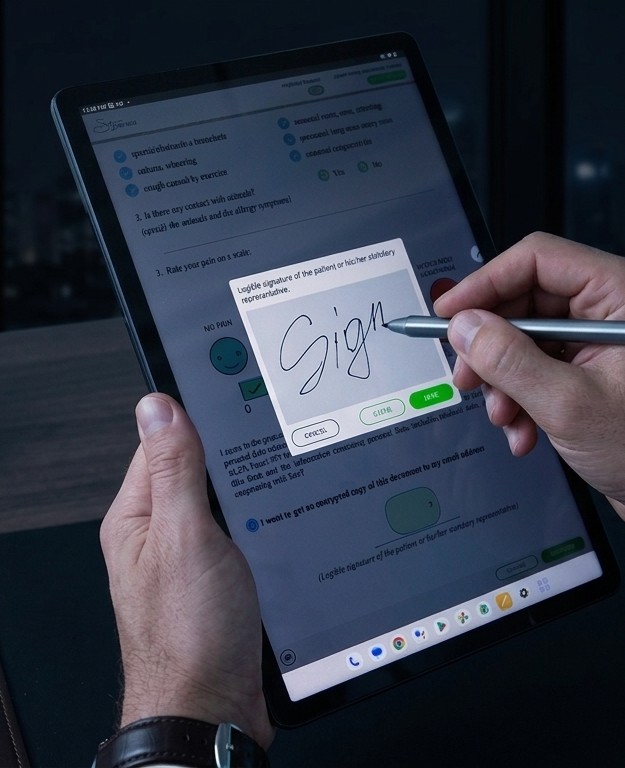
Signing a PDF online means adding your signature, whether drawn by hand, typed, or uploaded as an image, directly onto a digital document, without printing it, signing it on paper, and scanning it back in. PutWatermark's Sign & Fill tool also lets you place fill in text fields on specific pages. Electronic signatures created this way are legally valid for most everyday agreements in the United States under the ESIGN Act and UETA. Exporting signed or filled PDF pages uses 50 credits per billable page, with an additional 5 credit surcharge per page that contains fill text. Try the editor in your browser with no account required.
This guide walks through exactly how to sign a PDF online, when an electronic signature is legally sufficient, and what to watch for with different signing tools.
Why Sign Documents Online Instead of on Paper
The traditional process (print, sign, scan, email) is slow and easy to mess up (a bad scan, a signature that doesn't line up, a missing page). Signing directly on the PDF avoids all of that:
- Freelancers and contractors can sign and return a contract in under a minute instead of hunting for a printer.
- Small businesses can get proposals and invoices signed by clients without a back and forth of attachments.
- Anyone reviewing a document, like a lease, a form, or a permission slip, can approve it on the spot, from a phone or laptop.
This isn't a workaround or a lesser version of “really” signing something. In the U.S., electronic signatures carry the same legal weight as handwritten ones for the vast majority of contracts and agreements, as long as both parties intended to sign and agreed to do business electronically. See How to Watermark Photos, PDFs, and Videos Online for Free for how the same document can be watermarked alongside signing, if you also need to mark it as a draft or protect it from being copied.
How to Sign a PDF Online, Step by Step
- 1
Upload your PDF.
Drag it into the tool or select it from your device. Multi page documents are supported, and the file stays in your browser while you edit and sign. - 2
Create your signature.
You have two options:
- Draw it with your mouse, trackpad, or finger on a touchscreen, just like signing on paper.
- Type your name and have it rendered in a handwriting style script font, if you'd rather not draw with a mouse.
- 3
Save it for reuse.
Keep your full signature and your initials as two separate saved options, so you don't have to redraw them for every page or every document in the same session. - 4
Drag your signature into place on the page.
Resize it if needed, and adjust its position precisely. This isn't a fixed stamp in the corner; you control exactly where it lands. - 5
Repeat for any additional pages that need a signature or initials.
Apply the same saved signature or initials to every page that requires it before you export. - 6
Add fill in text fields (optional).
Use Add Text to place typed fields on pages that need dates, names, or other fill ins. Each fill page costs 55 credits on export (50 for the page plus a 5 credit fill surcharge). - 7
Download your signed PDF.
The rest of the document is untouched. Your signatures, initials, and fill text fields are added as overlays, and the underlying text stays selectable and searchable, so the document is still fully usable, not flattened into an image.
When Is an Electronic Signature Legally Valid?
In the United States, two laws govern this: the Electronic Signatures in Global and National Commerce Act (ESIGN Act), a federal law passed in 2000, and the Uniform Electronic Transactions Act (UETA), adopted by nearly every U.S. state. Together, they establish that an electronic signature can't be denied legal effect purely because it's in electronic form.
For a signature to hold up, four things generally need to be true:
- Intent to sign: both parties meant to sign, not accidentally clicked something.
- Consent to do business electronically: both sides agreed to handle the transaction digitally.
- The signature is associated with the record: it's clearly tied to the specific document being signed.
- The signed document can be retained and reproduced: both parties can access and keep a copy.
Some documents are excluded from electronic signing regardless of these conditions: wills, certain court orders, and a handful of other specific categories. For anything else (contracts, proposals, invoices, agreements, forms), an electronic signature is typically just as binding as a wet ink one.
(This is general information, not legal advice. If a specific document's validity matters a lot to you, it's worth confirming with a lawyer for your situation. See our Disclaimer for more detail.)
Drawn vs. Typed Signatures: Which Should You Use?
Both are legitimate electronic signatures under the law described above. The legal validity comes from intent and consent, not from the specific visual method used to create the mark.
- Draw it if you want something that looks like your actual handwriting, or if you're signing on a touchscreen where drawing feels natural.
- Type it if you're on a laptop without a trackpad you trust for drawing, or you just want something clean and consistent every time. Typing your name renders it in a handwriting style font rather than plain typed text, so it still reads as a signature rather than a label.
- Save one of each if you're not sure. You can switch between them per document.
Signing vs. Watermarking: Not the Same Thing
It's worth being clear on the difference, since both can apply to the same PDF:
- A signature indicates you (or someone) reviewed, approved, or agreed to a specific document.
- A watermark protects a document or file from unauthorized use or copying, and doesn't imply approval. A “DRAFT” watermark, for example, means the opposite of a finished, signed agreement.
You can use both on the same PDF. Sign a contract and watermark it “COPY” for the version you send before the final signed original, for instance. The guide to watermarking photos, PDFs, and videos covers how watermarking works when you need draft marks or copy protection on the same file.
Frequently Asked Questions
Do I need to create an account to sign a PDF?
No signup is required to try the editor. Upload, create your signature, and preview freely. Exporting signed or filled PDF pages uses credits (50 per billable page, plus 5 per fill text page). Create a free account when you're ready to export.
Is a typed signature as legally valid as a drawn one?
Yes. Under the ESIGN Act and UETA, what makes an electronic signature valid is the signer's intent and consent, not whether it was drawn, typed, or uploaded as an image.
Can I sign a document without printing it?
Yes. Upload the PDF, sign it directly in the browser, and download the signed version. No printer or scanner needed.
Does signing a PDF change the rest of the document?
No. Your signature is placed as an overlay in the position you choose. The rest of the document's text stays selectable and searchable, exactly as it was.
Can I save my signature for multiple documents?
Yes, for the current session. Draw or type your signature once and reuse it across multiple pages or documents without redoing it each time.
Can I add fill in text fields to a PDF?
Yes. Use Add Text in the Sign & Fill tool to place typed fields on specific pages. Each page with fill text costs 55 credits total (50 for the page plus a 5 credit fill surcharge). Pages with signatures or initials only cost 50 credits per page.
Is there a subscription to sign documents?
No. There is no monthly subscription, only pay as you go credits when you need additional volume or paid features.
Ready to sign your first document? Open the editor