Beyond Watermarking: Trim, Blur, and Edit Your Videos Online

by Jordan Kim · Document workflows & browser based editing · Updated 7/15/2026 · Posted in Video Editing
Most watermarking tools do exactly one thing: stamp a mark on your video and call it done. PutWatermark started there too, but the video editor has grown into something closer to a full lightweight video editor that happens to also handle watermarking. If you've only used it to add a watermark, here's what else is built in.
Trim Your Video
Cut down a clip without opening a separate app. Drag the trim handles to set your start and end points, preview the trimmed range, and export just the section you need. Useful for pulling a highlight out of a longer recording, or cutting dead air off the front and back of a clip before you watermark and share it.
Blur Sensitive Footage
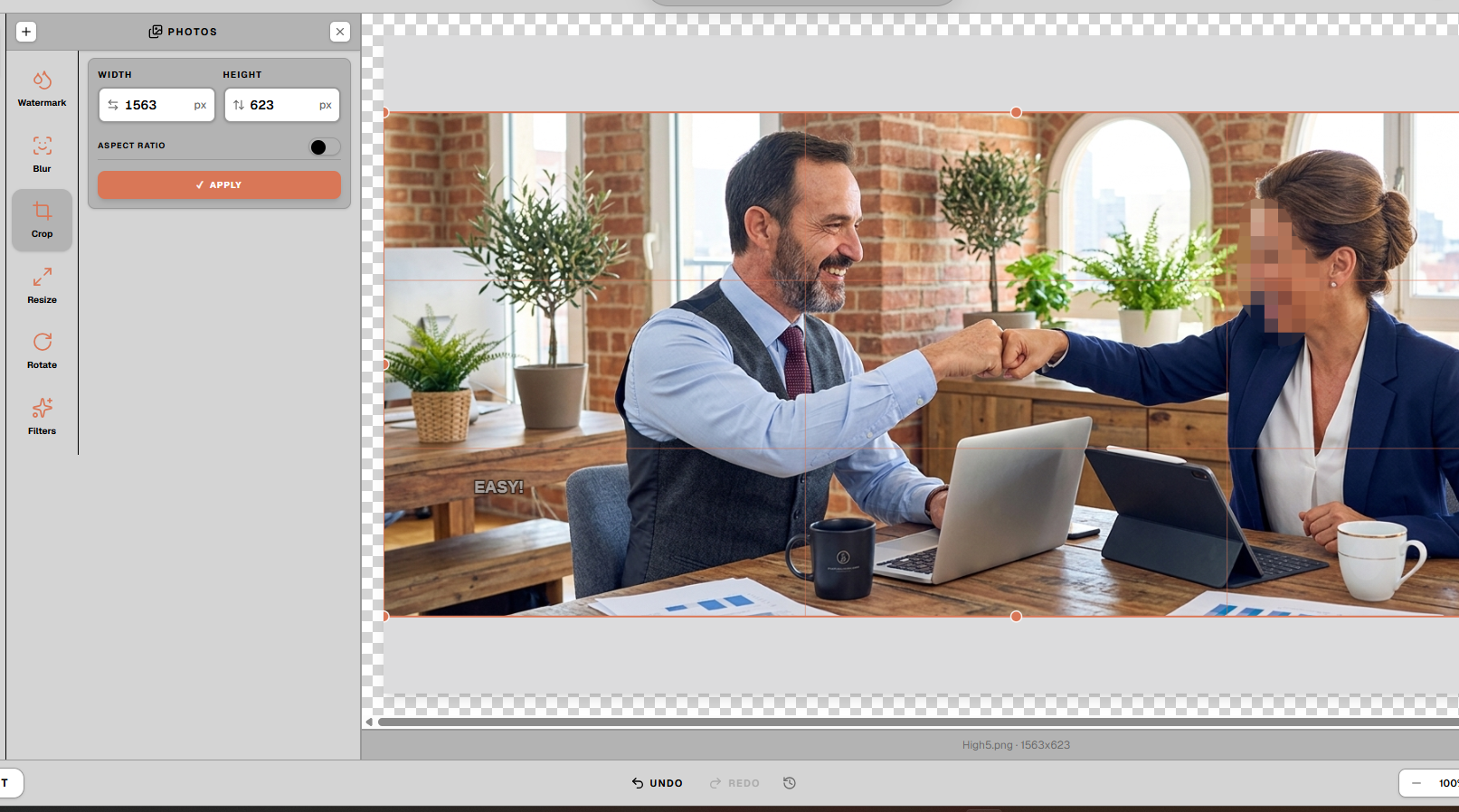
Sometimes a video has something in it you don't want visible, like a license plate, a face, a document on a desk in the background. The blur tool lets you paint a mosaic style blur over a specific area of the frame, and set exactly which part of the timeline it applies to. The blur only shows during the time range you choose, so the rest of your video stays untouched.
Merge Multiple Clips Into One
Recorded several short clips that really belong together as one video? Upload them, arrange them in order, and merge them into a single file. This is useful for combining multiple takes, joining screen recording segments, or assembling a sequence of clips into one continuous video, all before you add a watermark or export.
Add Captions
Drop captions directly onto your video without needing a separate captioning tool. This helps with accessibility, and it also matters for platforms where a large share of viewers watch with the sound off.
Control Exactly When Your Watermark Appears
This is one of the more unusual features: instead of a watermark being visible for the entire video, you can scope it to a specific time range using a visual timeline with filmstrip thumbnails. Want your watermark to appear only during the first 15 seconds as a branding intro, or only during a specific clip in a longer video? Drag the range handles on the timeline to set exactly when it shows and when it doesn't.
How Long a Video Can You Edit?
Short clips (under a minute, 1080p or lower) process instantly right in your browser. Longer videos, up to 60 minutes, are handled through server side processing, splitting the video into segments, editing each one, and stitching them back together automatically. You don't need to manage any of that yourself; you just upload and export like normal, and the length is handled behind the scenes. For a deeper walkthrough of the watermarking flow itself, see our guide to watermarking video online.
No Separate Apps Needed
Trim, blur, merge, captions, and watermarking used to mean juggling three or four different tools. PutWatermark handles all of it in one browser based editor. Upload once, apply whatever combination of edits you need, and export a single finished file.
Frequently Asked Questions
How long a video can you edit in PutWatermark?
Short clips (under a minute, 1080p or lower) process instantly in your browser. Longer videos, up to 60 minutes, are handled through server side processing. You upload and export like normal; the length is handled behind the scenes.
Can you control when a watermark appears on a video?
Yes. Use the visual timeline with filmstrip thumbnails to scope your watermark to a specific time range, for example only during the first 15 seconds or only during one clip in a longer video.
Can blur be limited to part of a video?
Yes. Paint a mosaic style blur over a specific area of the frame and set exactly which part of the timeline it applies to. The blur only shows during the time range you choose.
Do I need separate apps for trim, blur, merge, and captions?
No. PutWatermark handles trim, blur, merge, captions, and watermarking in one browser based editor. Upload once, apply whatever combination of edits you need, and export a single finished file.
Ready to edit a video? Open the video editor